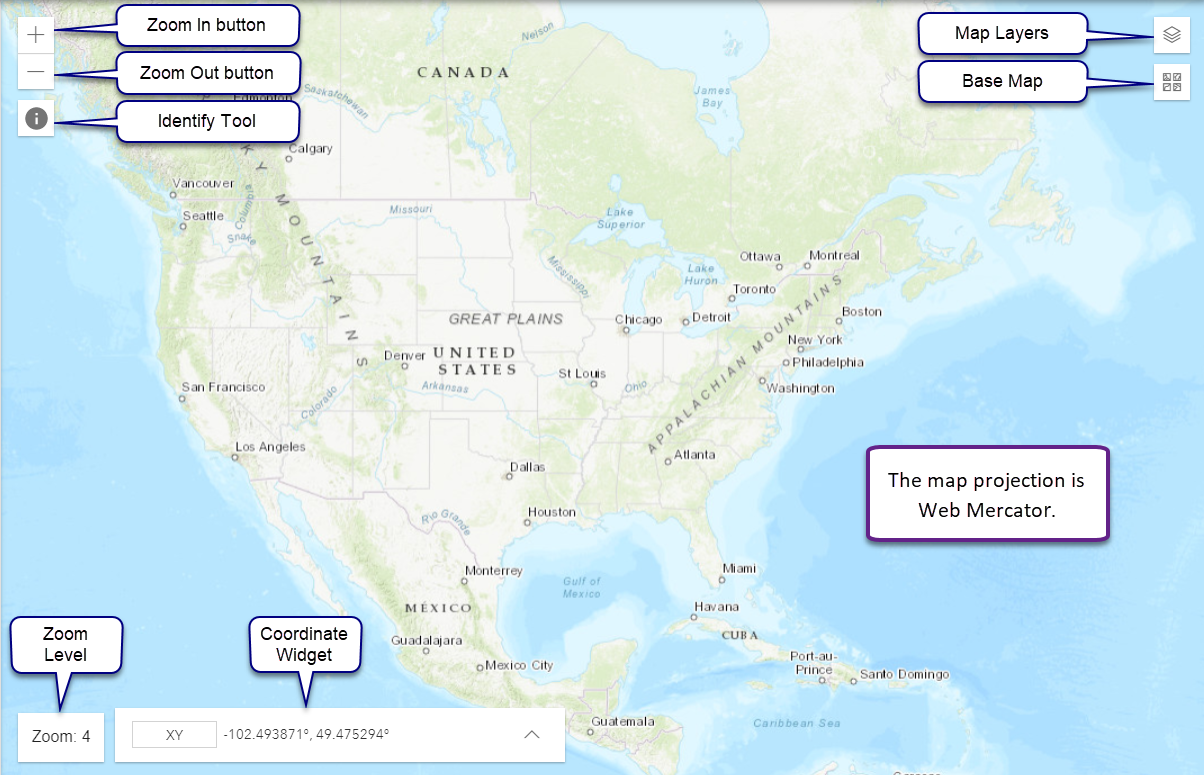
The map display has functions to pan, to zoom, to show coordinates, and to identify features on NHD and service layer features on the map.
The map display projection is set to Web Mercator. You cannot change the display projection however, you can use the Coordinates Widget to convert map coordinates to other projections.
Change the Zoom level with zoom buttons or by double clicking. You an also use the mouse wheel to control zoom levels.

Use the panning function to navigate the map.
NOTE: The Identify Tool must be inactive to pan the map.

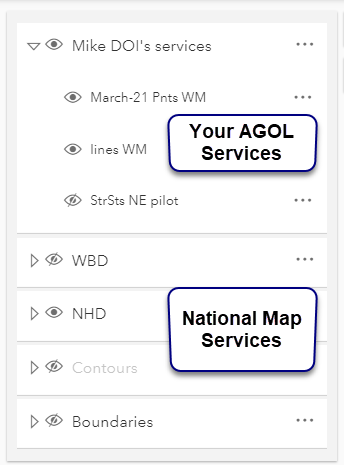
Control the visibility of service layers from the Map Layers pane.
You can control the visibility of your services on AGOL, and can also the visibility of National Map service layers including WBD, NHD, Contours, Hillshade, and Boundaries.

 contracted
 expanded
HydroAdd has a variety of base maps to choose from. To change the base map, click the base map button  and click the desired base
map. To close base map panel, click the base map button again.
and click the desired base
map. To close base map panel, click the base map button again.
Learn more about HydroAdd Base Maps.
Use the Identify tool, top left, to examine features attributes of map layers and service layers.
NOTE: The Identify Tool must be inactive to pan the map.
Learn more about the Identify Tool.
Use the Coordinate Widget, bottom left, to view coordinates, to navigate to specified coordinates, to add conversions, to capture map coordinates, and to copy coordinates into your clip board. Coordinates update in real time as you move the cursor or pan the map.
Learn more about the Coordinate Widget.